Customer understanding
Needs, desired outcomes, objections and buying signals grounded in the conversation.
Connect your calendar, choose how SalesLens joins and stay focused on the customer. Turn each recorded meeting into clear analysis and practical coaching.

SalesLens connects calendar scheduling, a meeting bot and conversation analysis in one workflow. You choose the meetings; the recording becomes the starting point for understanding and improvement.
Authorise your calendar and see upcoming meetings in SalesLens.
Set joining rules, check each meeting and customise your bot.
Admit the bot when required and focus on the conversation.
Review the analysis, act on next steps and practise your coaching focus.
Connect Google Calendar or Microsoft 365 in Settings → Integrations. Review upcoming meetings and their joining preferences from your dashboard. Calendar access is separate from your email connection.
Try the rule above. In SalesLens, you can also adjust each meeting individually.
Choose the name customers see when your bot joins. Add a branded image to its camera tile, or use your company’s shared default. Keep the experience consistent with the team customers already know.
 Here to listen. Ready to help.SalesLens AI
Illustrative preview. In SalesLens, upload your own image. Changes here are not saved.
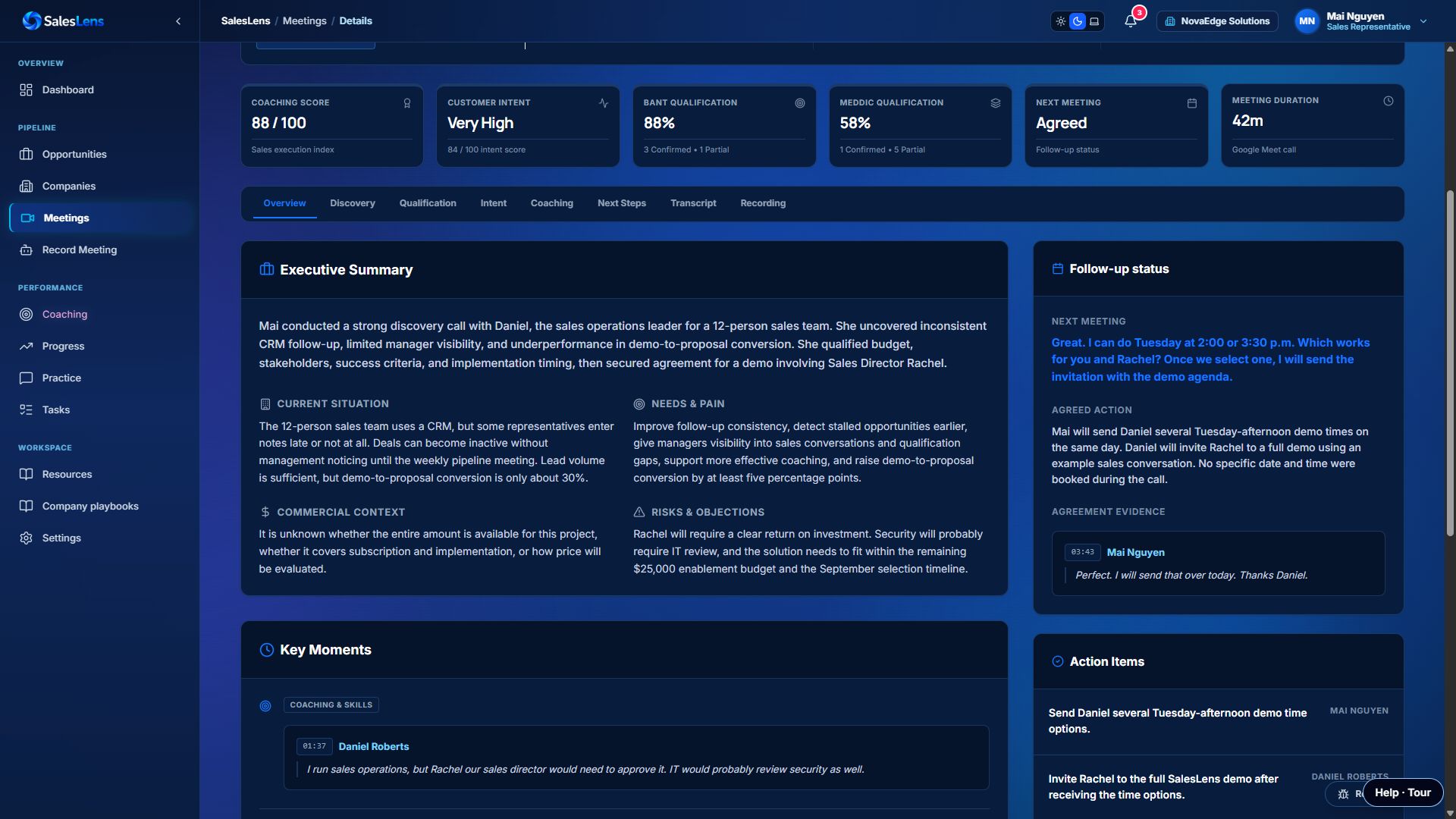
After processing, review what the customer needs, what remains uncertain and what your team agreed to do. Use the conversation evidence to understand the feedback, then turn it into a better next call.
Needs, desired outcomes, objections and buying signals grounded in the conversation.
Spot unanswered questions about budget, authority, timing and the buying process. Unconfirmed details remain gaps to investigate.
See which behaviour to improve, why it matters and what to ask or practise next—guided by your company playbook.
Missed in the meetingThe customer asked for a proposal, but the approval process was not established.
Try in the next conversation“Who will review the proposal, and what will they need to make a decision?”
Explore the meeting summary, customer intent and qualification before moving into coaching and practice.
Open Settings → Integrations in SalesLens, choose your calendar provider and complete its permission screen. Connected meetings appear in Upcoming Meetings, where you can review the meeting link and bot joining preferences.
No. Calendar and Gmail are separate connections with separate permissions. You can use online meeting capture without connecting your mailbox.
Yes. Google Calendar auto-join rules let you choose external sales meetings, whether to include internal meetings and whether a video link is required. A per-meeting toggle overrides the general rules.
Yes. Set the bot’s display name and an image for its camera tile. Your company can set a shared default and decide whether individuals can customise it. Saved changes apply to newly scheduled bots.
Joining depends on the meeting link, your rules and the host’s meeting settings. If there is a waiting room, the host may need to admit the bot. Let participants know the meeting is being recorded.
Once processing is complete, review the transcript, customer needs, buying intent, qualification gaps and agreed next steps. Coaching connects specific moments to your company playbook and suggests behaviours to practise before the next conversation.
Walk through calendar setup, bot customisation and meeting analysis with SalesLens.
Book a demo